
The previous lesson discussed thread waiting and notification.
Graphical user interfaces
A Graphical User Interface provides the primary means by which users of your application interact with it. In this section you will learn:
- The structure of graphical programs
- Some common layouts
- Using containers to organise graphical components
- Handling events such as button clicks
- Using inner classes
Graphical programs
The original releases of Java included graphical component classes that utilise the native graphical facilities of the running machine. These classes are collectively known as the Abstract Windowing Toolkit (AWT) and are in package java.awt and its sub-packages.
Later, a complete new set of platform independent graphical classes were released known as Swing – these are in package javax.swing and its sub-packages (note the 'x' after 'java'). Swing classes are more complete and advanced and solve the problems that AWT components sometimes had with components displaying and functioning slightly differently on different platforms.
Graphical layouts
Whenever you create a graphical Java class you need some way of placing the various components you need (buttons, labels, text entry fields, etc.) in a consistent and orderly fashion. In Section16 you will learn how to use the graphical builder that comes with NetBeans, but for now you will learn the fundamentals of laying out graphical component objects using the components directly.
There are two main concepts you need to know:
1.A graphical application is made up of one or more containers, where each container may contain individual components or other containers. It is therefore possible to nest containers inside other containers, as deep as you like. You make use of this through the Container class, and more usually through one of its subclasses
2.Each container is associated with a layout manager which determines how the components inside that container will be arranged. Each container may have a different layout manager. You make use of this through the LayoutManager interface, generally through one of its implementing classes
The Container class and the LayoutManager interface are in the java.awt package. However, since the graphical components you will develop will use the Swing classes you will mostly need to import javax.swing.
An example layout
All of the graphical classes you will develop in this course will be placed in package virtualzoo.ui, which you should have created earlier in this course. Right-click on the virtualzoo.ui package node and select New | Java Class..., entering a class name of ExampleFrame. In the source code, specify a wild-card import for the javax.swing package and make the class inherit from JFrame. Your source should look like this (with comment lines removed for clarity):
package virtualzoo.ui;

import javax.swing.*;

public class ExampleFrame extends JFrame {

}
Enter your text here ...
The JFrame class provides a simple means of generating a desktop application window, with a built-in title bar and buttons to minimise, maximise and close the window. The JFrame class itself inherits from Container.
Even though the frame is currently empty, you can get it displayed on your desktop by instantiating it and telling it to become visible. Enter this into Experiments, ensuring you import virtualzoo.ui:
ExampleFrame frame = new ExampleFrame();
frame.setVisible(true);
You should see a tiny application window in the top-left corner of your screen that looks similar to this:

You can click the X button to close the window but note that this does not actually end the application itself. To do this you need to tell NetBeans to end the application, which you can do by clicking the small close button that appears on the right-hand side of the bottom of the NetBeans window:

The first change you will make will be to cause the application to end itself whenever the window's close button is clicked, so define a constructor with the following code:
public ExampleFrame() {
    setDefaultCloseOperation(DISPOSE_ON_CLOSE);
}
- The
setDefaultCloseOperation()method (which is inherited fromJFrame) tells the frame that the application should exit when the window's close button is clicked. If you are wondering why this is not automatically performed, it is because it allows you to control the exiting of your application, for example by displaying a confirmation prompt or saving any data DISPOSE_ON_CLOSEis a constant inherited throughJFramewhich is the option to dispose of the resources associated with the window
You can also set the size of the frame in pixels and a give it a title:
public ExampleFrame() {
    setDefaultCloseOperation(JFrame.DISPOSE_ON_CLOSE);
    setSize(300, 200);
    setTitle("My Application");
}
The frame should now look as follows:

Now close the frame. You should also remember to close the frame after running each set of changes that follow, otherwise you will end up with multiple open windows.
You will recall that every constructor invokes a superclass constructor, and when this is not explicitly coded (as here) then it invokes the no-argument constructor. Therefore, the above is the equivalent of saying:
public ExampleFrame() {
    super();
    setDefaultCloseOperation(JFrame.DISPOSE_ON_CLOSE);
    setSize(300, 200);
    setTitle("My Application");
}
If you look at the Java API for JFrame you will see that there is another constructor that accepts a String argument to serve as the frame's title. You can therefore modify the constructor to take advantage of this and thereby remove the setTitle() method call:
public ExampleFrame() {
    super("My Application");
    setDefaultCloseOperation(JFrame.DISPOSE_ON_CLOSE);
    setSize(300, 200);
}
FlowLayout
To see how to place graphical components onto a container (such as a frame) you will initially use the one of the simplest layouts, the FlowLayout. This lays out components in a similar manner to how words are placed in a paragraph: each component is placed to the right of the previous component until the right-hand margin is reached, after which it is placed underneath.
You use the setLayout() method to specify that you want to use a FlowLayout as follows (place at the end of the constructor):
setLayout(new FlowLayout());
- Note that you need to import package
java.awtto find theFlowLayoutclass
The above instantiates a new FlowLayout object and assigns it to the frame. After the above statement write the following to instantiate a button and place it on the frame:
JButton myButton = new JButton("Click Me");
add(myButton);
The JButton constructor lets you specify the text that will appear on the button. After myButton is created it is added to the frame, which should now look like this:

You can click the button, but nothing will happen at this stage. Later, you will learn how to attach an event to a button so that it performs an action of some kind when clicked.
Now add four more buttons:
JButton myButton2 = new JButton("Click Me 2");
add(myButton2);
JButton myButton3 = new JButton("Click Me 3");
add(myButton3);
JButton myButton4 = new JButton("Click Me 4");
add(myButton4);
JButton myButton5 = new JButton("Click Me 5");
add(myButton5);
Your screen should now look like this, which shows how subsequent components flow inside a FlowLayout:

Try adjusting the width of the frame to see how the buttons adjust their placement.
If you prefer the placements to be left-aligned rather than centred, as is the above default, you pass an argument to the FlowLayout constructor:
setLayout(new FlowLayout(FlowLayout.LEFT));
•You may alternatively specify FlowLayout.RIGHT to get right-alignment, or FlowLayout.CENTER for centre alignment, although as mentioned, the latter is the default for the FlowLayout class
GridLayout
The GridLayout arranges components in a gri- like fashion, where you specify the number of rows and columns that form the grid. Each "cell" in the grid will be of the same size. Change the setLayout() call as follows:
// Replace this line…
setLayout(new FlowLayout(FlowLayout.LEFT));

// with this…
setLayout(new GridLayout(3, 2)); // 3 rows, 2 columns
- The two
intarguments supply the number of rows and the number of columns that are to make up the grid: - If you specify zero for the number of rows, then it will build however many rows are needed for the specified number of columns
- If you specify zero for the number of columns, then it will build however many columns are needed for the specified number of rows
The code above should result in the following frame:

Now change the number of rows to 2 and the number of columns to 3 and see how it changes the display.
You can specify a horizontal and vertical gap between the cells by passing two additional int arguments to the GridLayout constructor:
// 2 rows, 3 columns, 20 pixel gap
setLayout(new GridLayout(2, 3, 20, 20);
Note how if you resize the window all the components adjust to fill the new size.
BorderLayout
The BorderLayout is divided into five areas, representing the four points of the compass (north, south, east and west) together with a central area. You need to place your components in one of these five areas, although if you don't use a particular area then that area uses no space, and the rest of the layout adjusts itself accordingly.
To see this more clearly, as well as changing the setLayout() method you should also change the button texts:
setLayout(new BorderLayout());

JButton myButton = new JButton("North");
add(myButton, BorderLayout.NORTH);

JButton myButton2 = new JButton("South");
add(myButton2, BorderLayout.SOUTH);

JButton myButton3 = new JButton("East");
add(myButton3, BorderLayout.EAST);

JButton myButton4 = new JButton("West");
add(myButton4, BorderLayout.WEST);

JButton myButton5 = new JButton("Center");
add(myButton5, BorderLayout.CENTER);
Note the following:
- The
add()method has been passed an optional second argument representing the constraint; in this caseBorderLayoutuses it to place the component in the specified area. As you saw,FlowLayoutandGridLayoutdid not require the constraint (had you specified one it would have been ignored) - If you do not specify the constraint argument when using a
BorderLayoutthen Java will assume you want to place the component in the centre area[1] - There can be no more than one component in each area; if you place a component in an area where one exists already it will replace the existing one
- The north and south areas stretch all the way across the screen
- The centre area takes up whatever space remains after the other areas have been rendered
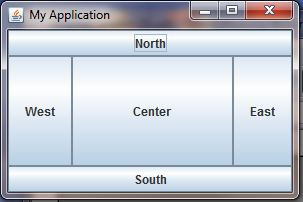
Try commenting out one or more of the placement statements to see how the layout adjusts itself when not all areas have been used.
BorderLayout is the default layout for JFrame if you don't specifically set one.
In the next lesson we will use containers and the JPanel class to organise layouts

Comments