
In the previous lesson we introduced graphical user interfaces.
Containers and JPanel
Because the Container object can contain other components, including other containers, it is possible to create some very sophisticated layouts. Rather than place your components directly onto a frame, as shown in the previous examples, it is good practice to place them instead onto a JPanel, and then place the JPanel onto the frame. You can think of a JPanel as being a blank canvas onto which you can place your components (including other JPanel objects) and using this approach can facilitate reuse since the JPanel can be included in multiple frames or even inside a browser window.
You will now modify the constructor code to create a panel, add each of the buttons to the panel, and then add the panel to the frame.
public ExampleFrame() {
    super("My Application");
    setDefaultCloseOperation(JFrame.DISPOSE_ON_CLOSE);
    setSize(300, 200);

    setLayout(new BorderLayout());

    // Create a panel to hold the components
    JPanel panel = new JPanel(new BorderLayout());

    // Create the components and add to the panel
    JButton myButton = new JButton("North");
    panel.add(myButton, BorderLayout.NORTH);

    JButton myButton2 = new JButton("South");
    panel.add(myButton2, BorderLayout.SOUTH);

    JButton myButton3 = new JButton("East");
    panel.add(myButton3, BorderLayout.EAST);

    JButton myButton4 = new JButton("West");
    panel.add(myButton4, BorderLayout.WEST);

    JButton myButton5 = new JButton("Center");
    panel.add(myButton5, BorderLayout.CENTER);

    // Add the panel to the frame
    add(panel); // defaults to BorderLayout.CENTER
}
Note the following:
- The default layout for
JPanelis a centredFlowLayout, and you therefore changed it to useBorderLayout - The
JButtonobjects are added to the panel instead of directly onto the frame - Finally, the
JPanelis added to the centre area of the frame
To show you how a panel can contain other panels, you will no longer place a button in the "north" area but instead create another panel to contain a label and a text entry field:
// Replace these lines...
JButton myButton = new JButton("North");
panel.add(myButton, BorderLayout.NORTH);

// With these...
JPanel nameEntryPanel = new JPanel(); // defaults to FlowLayout

JLabel nameLabel = new JLabel("Enter your name:");
JTextField nameField = new JTextField(15);

nameEntryPanel.add(nameLabel);
nameEntryPanel.add(nameField);

panel.add(nameEntryPanel, BorderLayout.NORTH);
- A
JPanelcallednameEntryPanelis instantiated and which will use aFlowLayout(which is the default forJPanelif you don't specify a layout) - The
JLabelclass creates a read-only label you can display on a screen - The
JTextFieldclass creates a text entry box. The argument is the width of the box in characters - The created label and text field are added to
nameEntryPaneland then the latter is added to the north area of the containing panel
The frame should now look like this:

You will learn more about JLabel, JTextField, and many other graphical components in the next section.
The last change you will make in this section will be to let Java work out a sensible size for your frame rather than set it explicitly. Remove the following statement:
setSize(300, 200);
Now, at the end of the constructor insert this statement:
pack();
- The
pack()method analyses each panel and component to work out their "preferred" size and adjusts the size of the panel accordingly
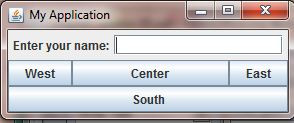
The frame should now look as follows:
Handling events
So far, you have displayed some JButton objects on the screen, but nothing happens when they are clicked because you have not yet defined any code to do so.
Java handles actions (such as button clicks, mouse movements, key presses, etc.) by notifying each event to all of its listeners. Like most other things in Java, events and listeners are just objects, and you therefore need to define an object which can listen to the event that Java will fire, since otherwise its action will be lost.
You will initially listen out for clicks to the Center button such that whenever it is clicked then whatever text value was typed in nameField (the JTextField object) will be sent to the Output window. This will entail telling this button object that you are interested in listening to its events, so look at the statements for this button that are currently defined:
JButton myButton5 = new JButton("Center");
panel.add(myButton5, BorderLayout.CENTER);
You have a reference object called myButton5 that points to the JButton object. To make this button respond to a click you need to do two things:
- Define a listener object that listens for a click and does something as a result; and
- Assign the
myButton5button object to the listener object
An object to respond to a button click
You can define the ExampleFrame class itself to be the object that responds to button clicks. You do this by implementing the ActionListener interface:
public class ExampleFrame extends JFrame implements ActionListener {
At this stage the ExampleFrame class will no longer compile for the following two reasons:
- The
ActionListenerinterface is in packagejava.awt.eventthat you have not yet imported - The
ActionListenerinterface requires implementing classes to define a method calledactionPerformed()
To rectify these issues, firstly add the following import statement to the class:
import java.awt.event.*;
Secondly, define the actionPerformed() method somewhere in your class:
@Override
public void actionPerformed(ActionEvent event) {
    System.out.println("A button was clicked");
}
Assigning the listener to the button
At this point your frame should compile but it will still not do anything when a button is clicked because you have not yet told the button object that you want to listen to its events. Insert the following statement between the two existing statements:
JButton myButton5 = new JButton("Center");
myButton5.addActionListener(this);
panel.add(myButton5, BorderLayout.CENTER);
The addActionListener() method tells the button object referenced by myButton5 that the ActionListener object referenced by this wants to listen to its events. The this keyword refers to the current instance of the ExampleFrame class, which is allowed to be passed as an argument because the ExampleFrame class now implements the ActionListener interface.
You will now see the message "A button was clicked" whenever you click the Center button (the message will appear in the NetBeans Output window). Currently, this is the only button that responds to any clicks.
To see which button was clicked, change the actionPerformed() method as follows:
@Override
public void actionPerformed(ActionEvent event) {
    JButton source = (JButton) event.getSource();
    System.out.println("A button was clicked: " + source.getText());
}
The getSource() method of the ActionEvent class returns a reference to the object that caused the event to be fired, in other words the particular button that was clicked. Because the method returns it as type Object, and because you know it must be a JButton, you can cast it in order to invoke button specific methods. The getText() method returns the text label that appears on the button.
However, the purpose of the button was to output the name typed into the text field and not the button, so modify the actionPerformed() method:
@Override
public void actionPerformed(ActionEvent event) {
    // Get entered name
    String enteredName = nameField.getText();

    // Output the entered name
    System.out.println("Hello " + enteredName);
}
The code will not currently compile because it is unable to locate the nameField reference. This is because it is declared within the constructor and therefore local to the constructor only. The solution is to make nameField an instance variable:
private JTextField nameField;
Now you need to modify the constructor to use the instance variable instead of defining it locally:
// Replace this statement...
JTextField nameField = new JTextField(15);

// With this...
nameField = new JTextField(15);
Run the application again and enter a name into the name field box. After clicking the centre button, you should now see the entered name displayed.
Suppose now you want to output the entered name in uppercase if the West button is clicked. You therefore need to listen to the west button:
JButton myButton4 = new JButton("West");
myButton4.addActionListener(this);
panel.add(myButton4, BorderLayout.WEST);
And you need to modify the actionPerformed() method to see which button was clicked, since the centre button should still output the name unchanged. While you could read the button text label, as shown earlier, a better way would be to compare the objects themselves (in case you change the label text at a later time). To get access to the button objects you will need to make them instance variables and change the constructor so as not to declare them locally:
package virtualzoo.ui;

import java.awt.*;
import java.awt.event.*;
import javax.swing.*;

public class ExampleFrame extends JFrame implements ActionListener {

    private JTextField nameField;
    private JButton myButton2, myButton3, myButton4, myButton5;


    public ExampleFrame() {
        super("My Application");
        setDefaultCloseOperation(DISPOSE_ON_CLOSE);

        setLayout(new BorderLayout());

        // Create a panel to hold the components
        JPanel panel = new JPanel(new BorderLayout());

        // Create the components and add to the panel
        JPanel nameEntryPanel = new JPanel();

        JLabel nameLabel = new JLabel("Enter your name:");
        nameField = new JTextField(15);

        nameEntryPanel.add(nameLabel);
        nameEntryPanel.add(nameField);

        panel.add(nameEntryPanel, BorderLayout.NORTH);

        myButton2 = new JButton("South");
        panel.add(myButton2, BorderLayout.SOUTH);

        myButton3 = new JButton("East");
        panel.add(myButton3, BorderLayout.EAST);

        myButton4 = new JButton("West");
        myButton4.addActionListener(this);
        panel.add(myButton4, BorderLayout.WEST);

        myButton5 = new JButton("Center");
        myButton5.addActionListener(this);
        panel.add(myButton5, BorderLayout.CENTER);

        // Add the panel to the frame
        add(panel); // defaults to BorderLayout.CENTER

        // Pack the components
        pack();
    }

    @Override
    public void actionPerformed(ActionEvent event) {
        // Get entered name
        String enteredName = nameField.getText();

        // Output the entered name
        System.out.println("Hello " + enteredName);
    }

}
You can now modify the actionPerformed() method to check for specific buttons being clicked using object identity:
@Override
public void actionPerformed(ActionEvent event) {
    // Get entered name
    String enteredName = nameField.getText();

    // Which button was clicked?
    Object source = event.getSource();
    if (source == myButton4) {
        // Convert name to uppercase
        System.out.println("Hello " + enteredName.toUpperCase());
    } else if (source == myButton5) {
        // Output the entered name as-is
        System.out.println("Hello " + enteredName);
    }
}
You could take a similar approach to handle the other two buttons, but there is an alternative way that enables you to avoid having lots of if...else blocks by defining separate objects to listen for each button and making use of inner classes.
In the next lesson we will show how to use inner classes.

Comments