
JSlider
The JSlider class allows the user to select a value, from within a range of values, by moving a sliding knob:
JSlider slider = new JSlider();
panel.add(slider);
- By default, the allowable range of values is from 0 to 100, with the knob pre-selected at 50.
The default slider will look like this:

You can use your mouse to drag the slider to a new position. To make the slider more useful you can paint tick marks and labels at predefined gaps. For example, to place labels every 10 units add the following statements:
slider.setMajorTickSpacing(10);
slider.setPaintLabels(true);
slider.setPaintTicks(true);
The slider will now look as follows:

If your slider needs a different range and starting value, you can use a different constructor:
JSlider slider = new JSlider(0, 250, 50);
slider.setMajorTickSpacing(50); // *** NOTE CHANGED TO 50 ***
Enter your text here ...
- The first constructor argument is the minimum allowed value
- The second constructor argument is the maximum allowed value
- The third constructor argument is the initial value. Note that this argument is optional, and if not supplied then the initial value will be halfway between the minimum and maximum values
- Note also the major tick spacing has been changed
Your slider will now look like this:
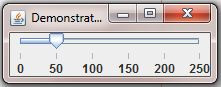
You can also specify minor tick spaces to appear between the major tick spaces:
slider.setMinorTickSpacing(25);
Now the slider will label the major tick spaces every 50 units, as before, but in addition will show minor ticks every 25 units:

While the default orientation is horizontal, as shown in the above examples, you can place the slider vertically using the setOrientation() method[1]:
slider.setOrientation(JSlider.VERTICAL);
Which results in this:

To obtain the selected value use the getValue() method:
int value = slider.getValue();

Comments